Daytab guide / Spending Sessions
Keep a day out in view.
Start a Spending Session in Daytab to follow an outing’s logged expenses and optional budget on your Lock Screen. On compatible iPhones, it also appears in the Dynamic Island.
Included without Daytab Pro · Daytab 1.3 · iOS 17 or later
Get Daytab for iPhoneFree to download · Optional Daytab Pro
Start with your outing.
A shopping trip, lunch with friends or a day exploring a new city. A session tracks the expenses recorded during that session, using your selected wallet. Its total can differ from the all-day total on Home. Expenses dated before the session started do not count, even if you save them later.
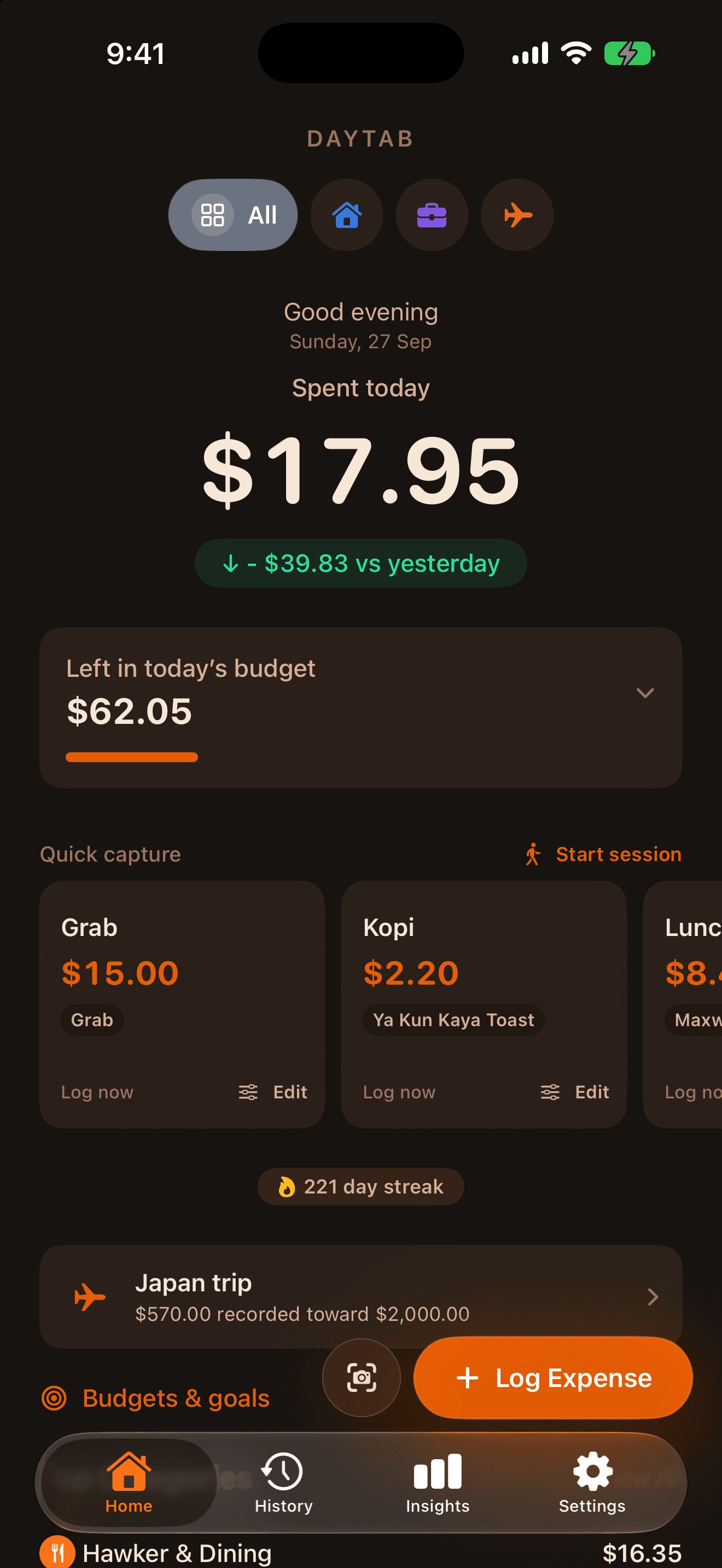
- Open Home in Daytab and tap Start session (or Start a spending session on an empty dashboard).
- Give your session a name. Choose a Wallet, or leave All wallets selected.
- Optionally add a Budget and choose a preset under Favourite action.
- Turn on Hide spending amounts if you prefer a count of logged expenses on the Lock Screen.
- Tap Start Live Session and allow Live Activities if iOS asks. Check your Lock Screen.
A few useful actions, close by.
Your favourite preset records its saved amount and category. Undo reverses a recent Quick Log when available. Add opens Daytab’s expense screen for a different amount; it does not put a keyboard inside the Live Activity. End finishes the session.
You can reach these actions without first navigating through Daytab. iOS may ask you to unlock or confirm, depending on the action and security settings.
Your entries make the total.
The Live Activity updates from expenses recorded in Daytab. It does not read your bank, automatically detect every purchase or reserve money. A session budget is a spending guide, not a payment limit.
Keep the session open for your outing, then end it when you’re done. iOS may end it when its Live Activity limit is reached.
Choose what the Lock Screen shows.
Hide spending amounts replaces the total with the number of expenses logged and hides session budget amounts. This setting applies to that session’s presentation; it does not change every widget or system notification.
A Live Activity needs permission in iOS. Dynamic Island presentation depends on your iPhone model. If the activity does not appear, check that Live Activities are enabled for Daytab in iPhone Settings.